Author: admin_oa

Add or edit your research data

Add or edit your research data

Trinity Laban uses Research Online to capture certain research-specific data from its staff.

Staff have the individual right to hide any or all entries from public view, however, data added here may form the basis of any submission in relation to any RDAP application.

  1. Ensure that you have set up Researcher permissions.
  2. Browse to the “Researchers” page (on the top menu bar: Research -> Researchers), and click on your name.
  3. This page contains any research output you have submitted, along with a list of your research data.
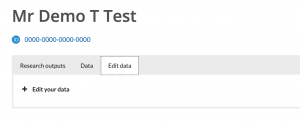
  4. To edit the data for RDAP purposes, please go to the “Edit Data”, and click on the “Edit your data link”.Edit your research data
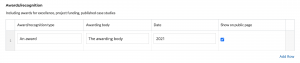
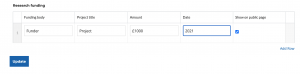
  5. In each relevant section, click the “Add row” link, and fill in the relevant details asked for.Adding a row of research data
    • For each item, you can untick the “Show on public page” if you don’t wish these details to be publicly accessible via TLRO.
  6. When you’ve filled in all relevant sections, scroll to the very bottom of the page, and click the “Update” button. Save your research data
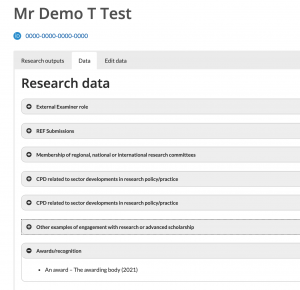
  7. The form will save, and the page will refresh. To see the public data available on your page, click on the “Data” tab: Research data
If you have any questions, please contact Ian Peppiatt in the Dance library.

Set up Researcher permissions

This article outlines the steps to correctly set up permissions on Trinity Laban Research Online (TLRO) as a researcher to enable you to upload your own research and research data.

Set up Researcher permissions

You will only have to set up permissions once
Once these are set, you will not have to set these again
  1. Login to TLRO using your normal Trinity Laban username and password (the same you use for Moodle).The login form on Trinity Laban Research Online
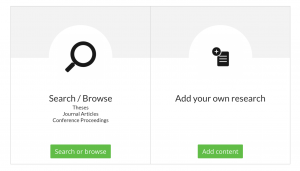
  2. Once logged in, select the button under the heading “Add your own research” which says “Add content”.Once logged in, select the "Add content" button
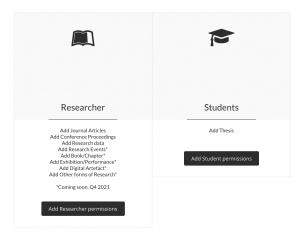
  3. This will now ask if you’re a Researcher or a Student. Select the option “Add Researcher permissions”.Select the "Add Researcher permissions"
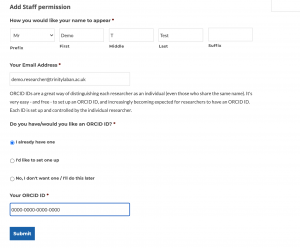
  4. Fill in the form, including the section relating to ORCID ID, and then hit the “submit” button. Please note that this form determines the way that you are referred to on TLRO (ie, on your Researcher page).
    Researcher details form
  5. Once submitted, you’ll see a confirmation. Confirmation of permissions
  6. You’re now set up to:

Add your own research to TLRO

This article will explain the step-by-step ways to add your own Research to Trinity Laban Research Online.

Add your own research to TLRO

Click on the appropriate link below depending on what you’d like to add.

At present, researchers within Trinity Laban can only add:


Other forms of research coming soon

Over the next few months, the following research outputs will also be added:

  • Research Events
  • Books/Chapters
  • Exhibitions/Performances
  • Digital Artefacts
  • Other forms of Research

How to log in

How to log in

You can log in using the “Log in” links on the top menu or via the form to the side of many pages.

You should use your Trinity Laban username or email address and password (the same that you use to log in to Moodle, or your Trinity Laban email).

If you are unable to log in, please contact the IT Department or the Dance library.